Optimizely Module
Introduction
The Optimizely Module allows you to exchange data with Optimizely by adding, updating, or removing recipients from a recipient list, as well as checking the subscription status of a customer.
How to Use the Module
- Set Up Basic Authorization: Obtain your Client ID from Optimizely and create an API user to get the API password. Base64 encode the username and password for HTTP Basic Authentication. You can generate this directly in LoyJoy by entering the username and password.
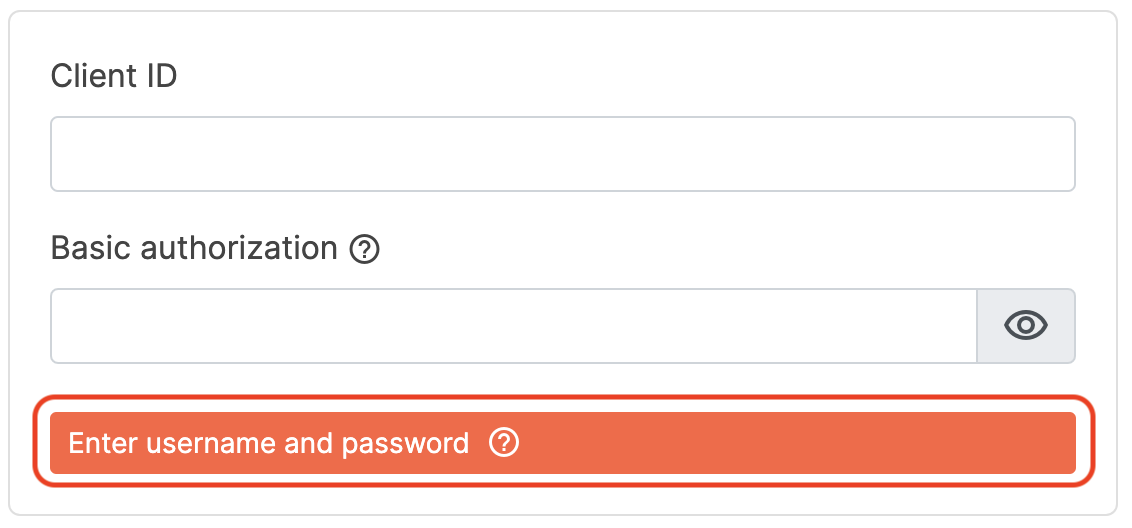
- Choose a Mode:
- Subscribe: Add an email address to a recipient list using the Recipient List ID and optionally an Opt-In Process ID.
- Unsubscribe: Remove an email address from a recipient list using the Recipient List ID.
- Get Opt-In Status: Check the subscription status using the Recipient List ID. The result is saved in the
optimizely_opt_in_statusvariable. The result can be eitherfoundornot_found.
info
In all cases, the email address is taken automatically from the LoyJoy variables. You need to use either an Email Module or a Sign In Module to let users enter their email address so that it can be used in the Optimizely module.
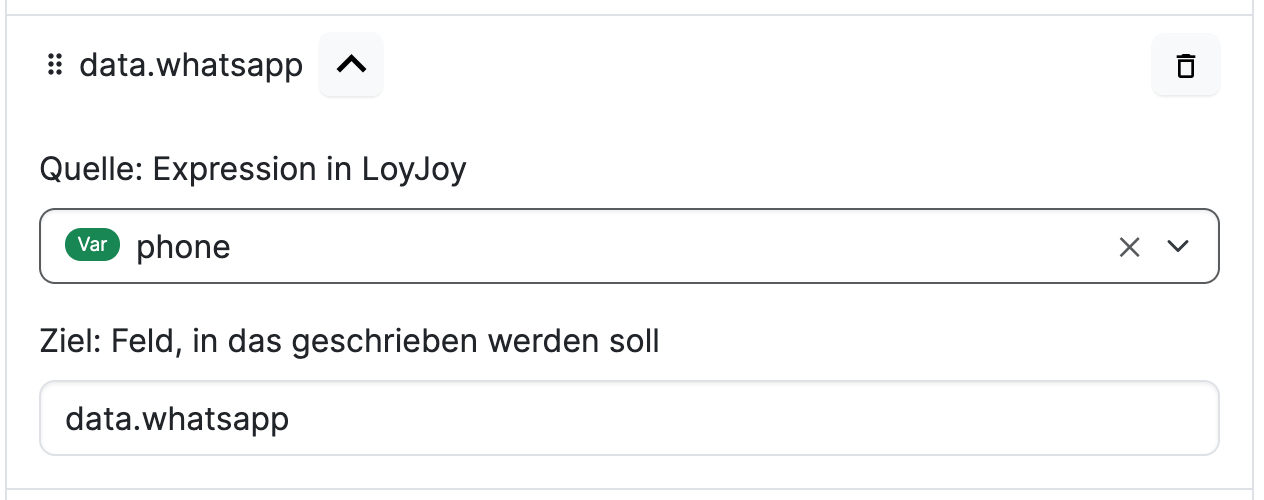
- Mappings: For the Subscribe mode, you can define mappings to pass additional data from the chat to Optimizely.
note
Some recipient list fields require the data. prefix in the target JSON pointer. For example, to write a value to the field firstname, use /data.firstname as the target JSON pointer. The field name must match the internal field name of the recipient list as returned by the Optimizely API.
Fields
- Client ID: Unique identifier for your Optimizely account.
- Recipient List ID: ID of the list in Optimizely where the recipient will be added, removed, or checked
- Opt-In Process ID: (For Subscribe mode) ID of the opt-in process, if a double opt-in is required.