Email Module
Introduction
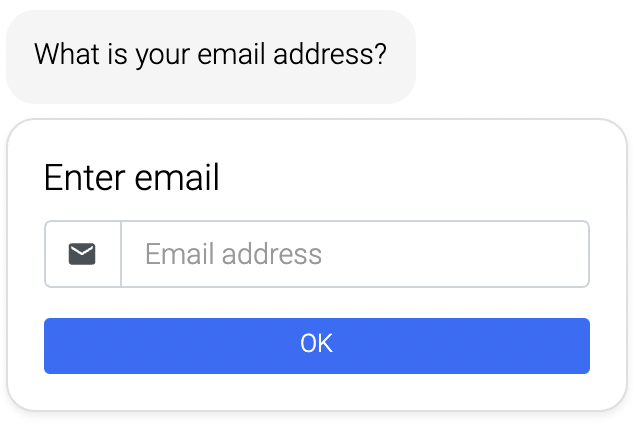
Ask your customers for their email address.
Typical Use Cases
This module goes hand in hand with other modules such as Newsletter-opt in. For a working newsletter subscription process, the email address of the customer must be known. For this e.g. you can place a Email module or Sign-in module above.
How to Use the Module
Useful Tips
The email is stored in the email variable. You can reuse the value of this variable in texts by using the following expression: ${email}.
Ask again for value
If the variable email already has a value, you can ask the customer again by enabling this option.
Terms
You can add terms that the customer has to accept.
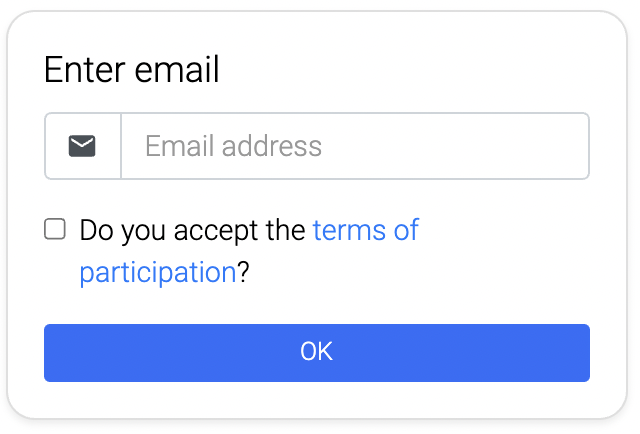
While "Do your customers have to agree to terms?" is activated, customers have to accept the terms to enter their email.
You can store the terms intern as html file or link to a website.
Captcha Bot Check
Protect the email input in the web chat against bots that submit fake or disposable addresses. When you enable "Enable captcha bot check", the chat runs an invisible check by CaptchaFox while the customer enters the email address. Usually customers do not notice the check. Only if CaptchaFox considers the input suspicious, it shows a short challenge (e.g. a slider) as a popup, and the email address is submitted after the customer has solved or closed it.
Set up CaptchaFox
- Create an account at CaptchaFox and create a new page for your agent.
- Give the page a name (for example your company name) and enter the domain on which the chat runs (for example
example.com) as a placeholder. - Select JavaScript as the platform.
- Open the General tab and copy the site key and the secret key. You will need both in LoyJoy.
Enable the check in the email module
- In the email process module, enable "Enable captcha bot check".
- Enter the "CaptchaFox site key" and the "CaptchaFox secret". The secret is stored encrypted and is never sent to the chat widget.
The email address is only stored after CaptchaFox has validated the check on the server. If the validation fails, the chat shows the form again with the email address prefilled, so the customer only has to submit it once more. The check runs on every email input as soon as it is enabled.
If your website has a Content Security Policy (CSP), it has to allow CaptchaFox in addition to the LoyJoy domains, else the check fails and the email address cannot be stored. See Content Security Policy (CSP) for the required directives.
Testing
Testing the check in the manager does not work, because the URL of the manager's chat preview is not registered as a domain on your CaptchaFox page. You can either add that URL as an additional domain to the page in CaptchaFox, or test the check on your live chat in an incognito window.
The check only applies to the web chat. On other channels, such as WhatsApp, the module behaves as before. If the bot check is enabled but the site key or the secret is missing, every email input in the web chat fails. The manager shows a critical issue for the module in this case.
The analytics of the module show the number of successful and failed validations. They are based on the events email_captcha_validation_succeeded and email_captcha_validation_failed.