Connect LoyJoy Headless to Microsoft Copilot Studio
With LoyJoy Headless you manage your LoyJoy AI agents from an AI assistant instead of the LoyJoy Manager. This guide shows how to connect the LoyJoy Manager MCP server to an agent in Microsoft Copilot Studio. You log in with your LoyJoy account, no API key needed.
What you can do with it
Once connected, you work with LoyJoy in plain language from Copilot Studio, and after publishing also from Microsoft Teams or Microsoft 365 Copilot:
- Create and edit AI agents: for example, add a knowledge source, change opening hours or adjust instructions.
- Check and improve: ask which questions your agent could not answer and get suggestions to close the gaps.
- Query analytics: get key figures of your agents without opening the LoyJoy Manager.
- Publish: changes are made in the staging version. Your live agent only changes when you publish.
The connection uses the roles of your LoyJoy user. More background: LoyJoy Headless.
Before you start
Microsoft Copilot or Microsoft Copilot Studio? Microsoft uses the name "Copilot" for several products. The LoyJoy Manager MCP server is connected in Microsoft Copilot Studio.
| Microsoft Copilot (Copilot chat, Microsoft 365 Copilot) | Microsoft Copilot Studio | |
|---|---|---|
| What it is | AI assistant you chat with, also in Word, Outlook and Teams | Tool to build your own agents and connect external tools |
| Address | copilot.cloud.microsoft | copilotstudio.microsoft.com |
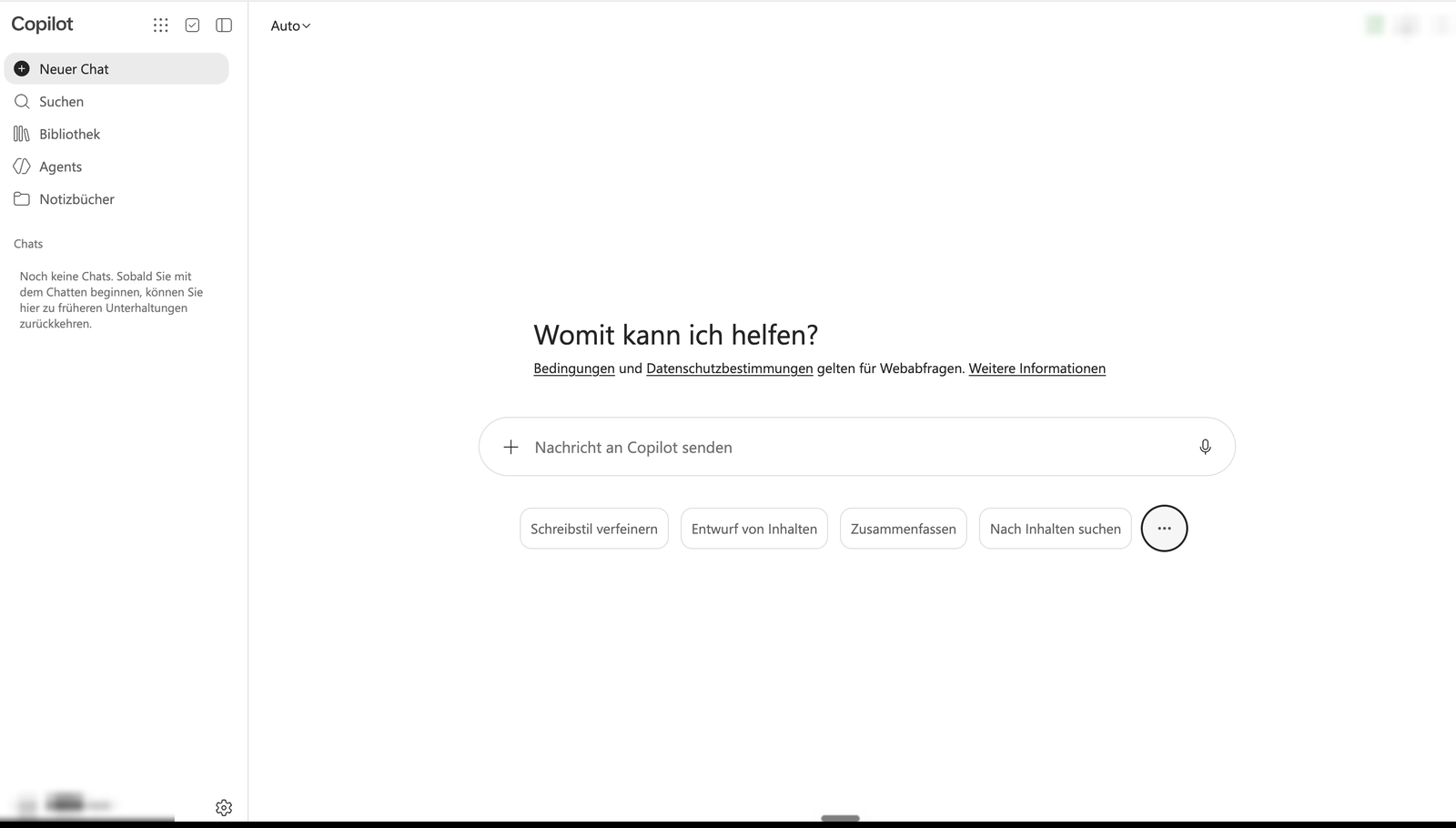
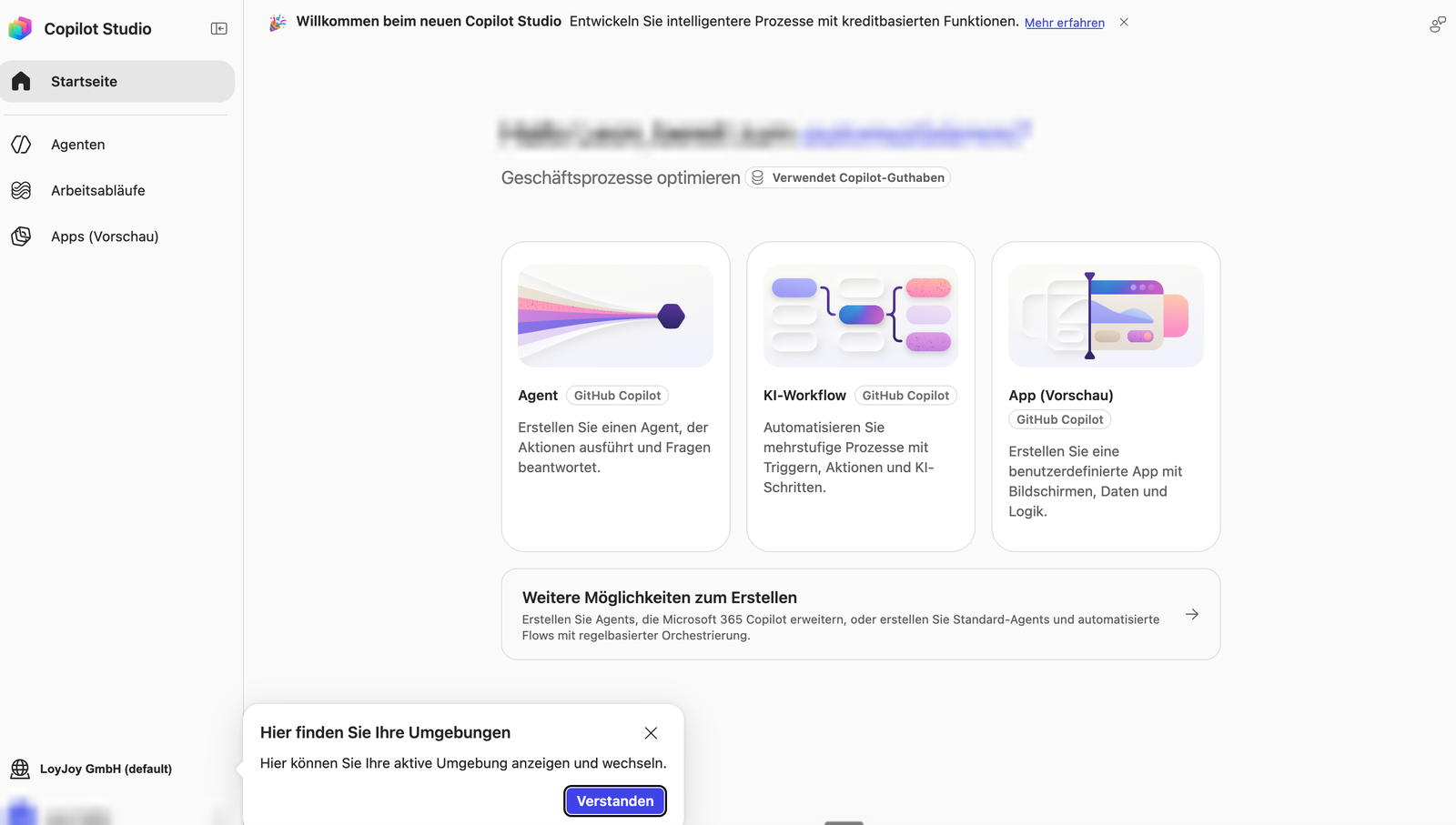
| How to recognize it | "Copilot" at the top left and a chat input "Send message to Copilot" | "Copilot Studio" at the top left, menu Agents, Workflows, Apps |
| Connect the LoyJoy Manager MCP server | No | Yes |
You set up the connection once in Copilot Studio. After publishing, your team uses the agent in Teams or Microsoft 365 Copilot.
This is the Copilot chat. You cannot connect LoyJoy here:
This is Copilot Studio, where the setup takes place:
Who does what:
| Part | Who | Time |
|---|---|---|
| Part 1: Prepare Copilot Studio | Your Microsoft or Power Platform admin | about 45 minutes, only once |
| Part 2: Connect LoyJoy | You, with your LoyJoy account | about 15 minutes |
If your company already uses Copilot Studio, Part 1 is usually done. Ask your admin for an environment with Dataverse and Copilot credits and go to Part 2.
Screenshots are taken from the German interface of Copilot Studio; button labels in this guide are given in English. Microsoft updates the interface regularly, so details may differ.
Part 1: Prepare Copilot Studio
For your admin. Copilot Studio needs three things before LoyJoy can be connected:
- A Copilot Studio license for the user. For testing, the free 30-day trial is enough: start the trial. A Microsoft work account is required, a personal email address does not work. The trial does not allow publishing.
- An environment with Dataverse. Without Dataverse, Copilot Studio cannot create agents.
- Copilot credits in this environment. Without credits, the agent does not answer.
Create an environment with Dataverse
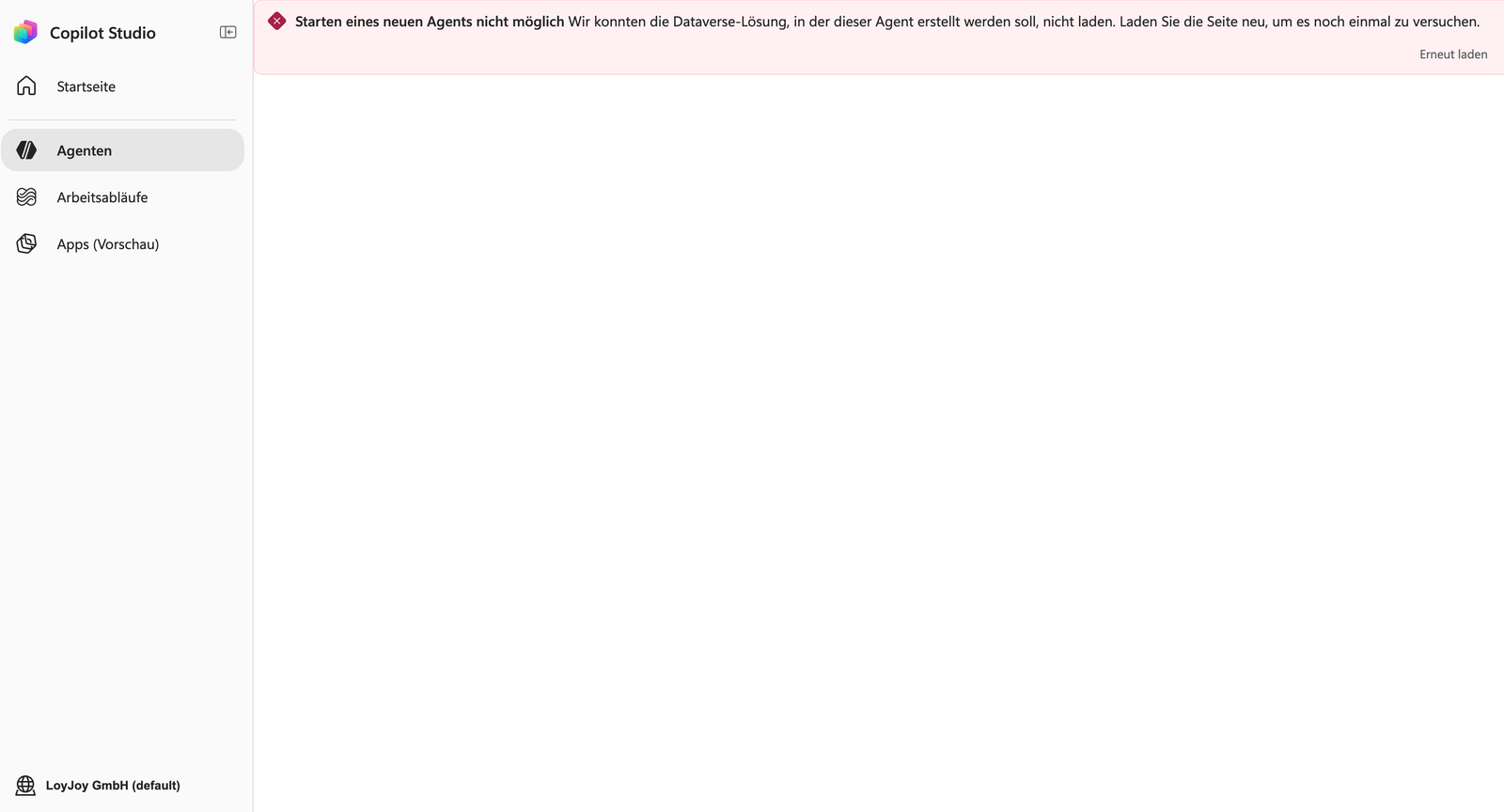
The default environment often has no Dataverse. Creating an agent then shows this error:
-
Open the Power Platform admin center and click + New.
-
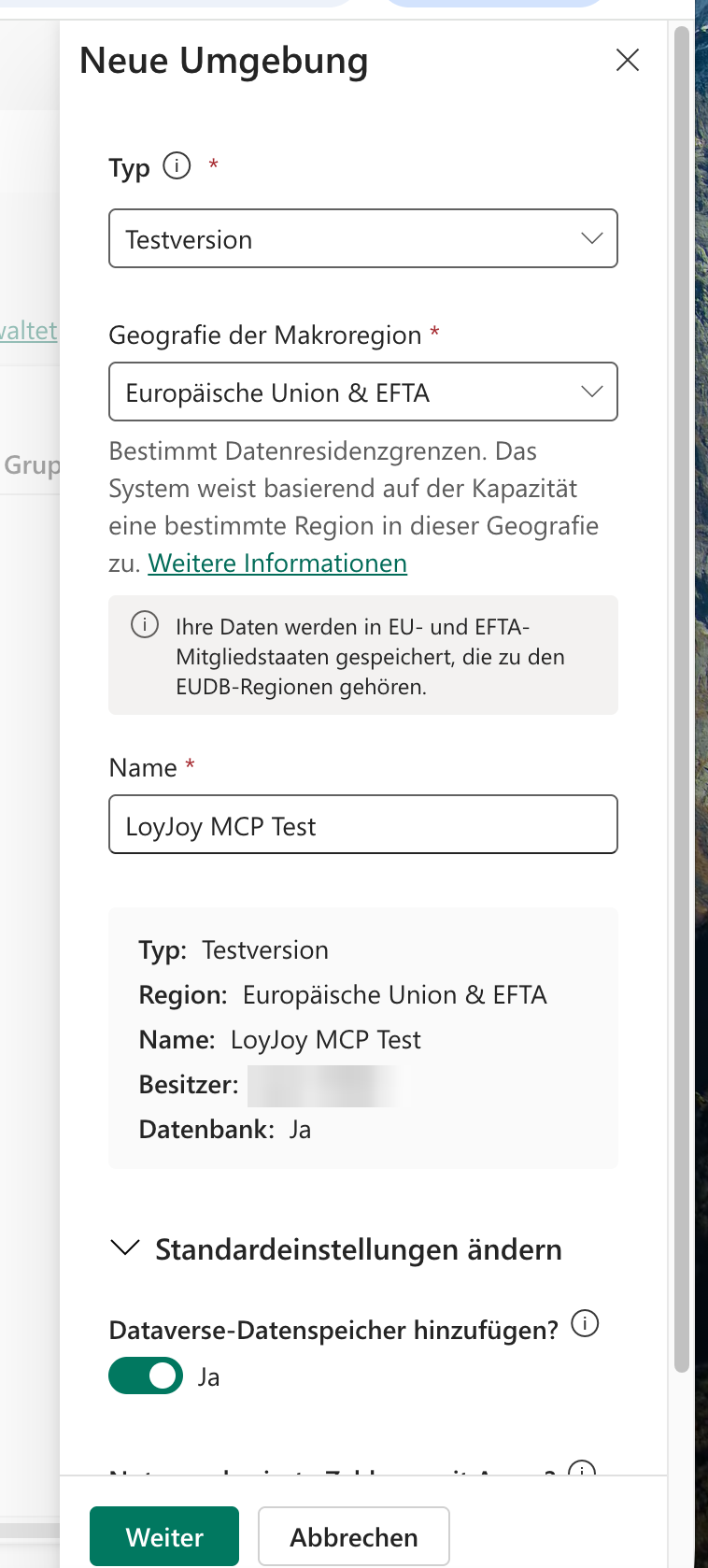
Under Type, choose Trial or, for a company-wide setup, the type your company uses for productive environments.
-
Choose the Region geography, enter a name and switch on Add Dataverse data store.
-
Leave Pay-as-you-go with Azure off, click Next, choose language, currency and Security group, then click Save.
-
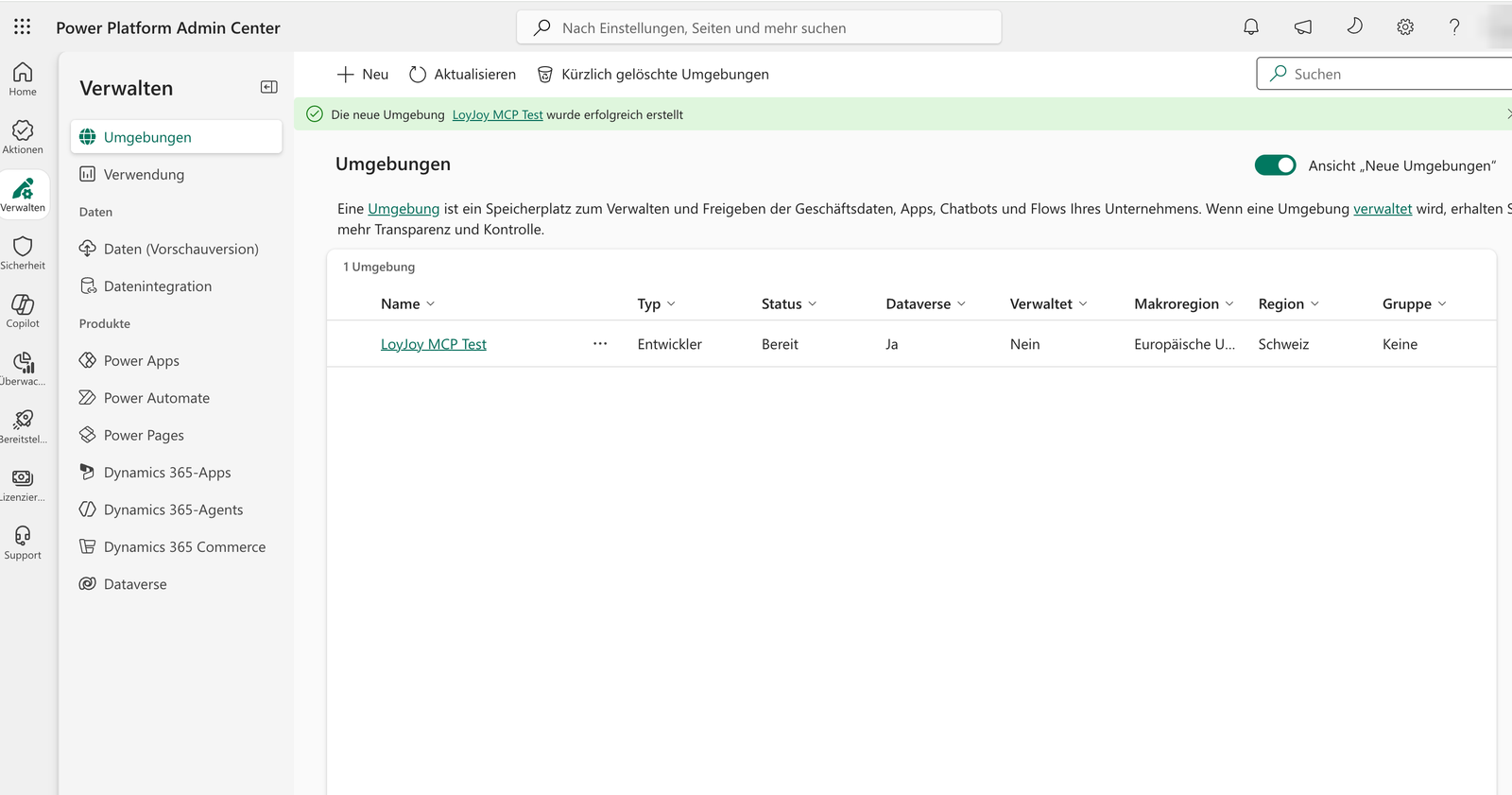
Wait until the status is Ready and Dataverse shows Yes. Click Refresh.
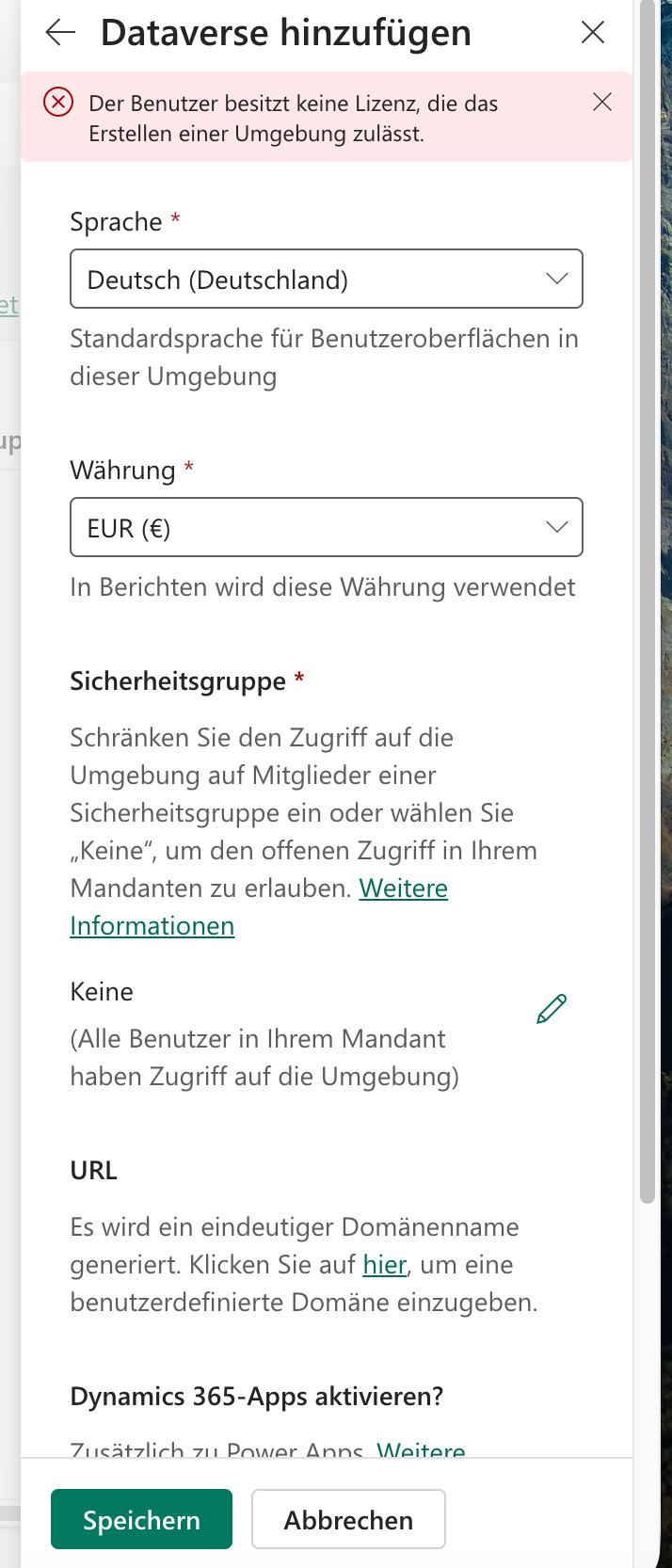
If the user's license does not allow the type Trial, this error appears:
In this case, choose the type Developer. It can usually be created by every user, but contains no credits, so the admin has to assign them.
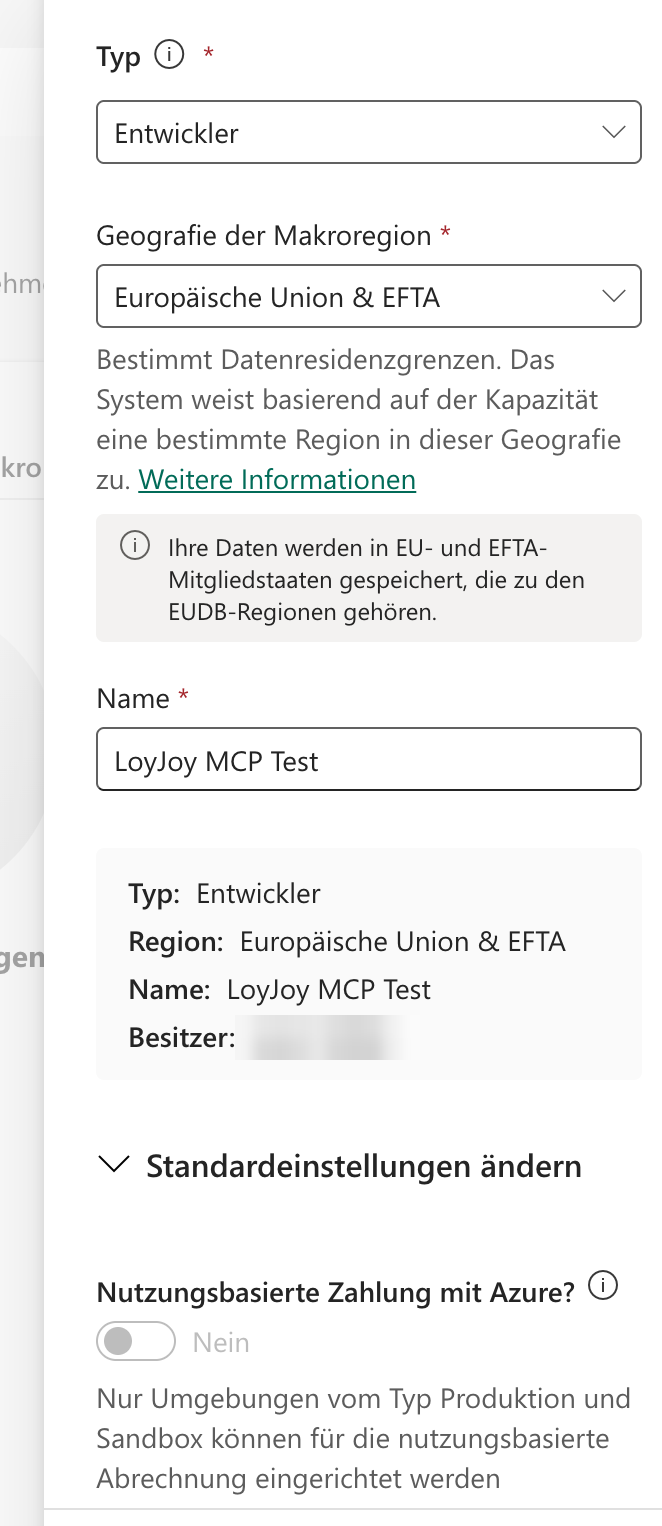
- Data location: with "European Union & EFTA", Microsoft picks a data center within the EU and EFTA, for example in Switzerland. Choose a narrower geography if you need a specific country.
- Access: with the security group None, every user of your Microsoft tenant can access the environment. For productive use, choose a security group.
Assign Copilot credits
In the Power Platform admin center, open Licensing > Copilot Studio and assign Copilot credits to the environment. See Manage Copilot credits capacity on Microsoft Learn for details.
Part 2: Connect LoyJoy
For you. You need access to the prepared environment and a LoyJoy account with a role in your tenant, see Invitations and Roles.
Step 1: Create an agent
- Open copilotstudio.microsoft.com directly. Do not use the Microsoft product page: if you are already logged in, it may open the Copilot chat instead.
- At the bottom left, check that the prepared environment is selected. Click the environment name to switch.
- On the home page, click Agent.
- Click Untitled agent and enter a name, e.g. "LoyJoy Agent Manager".
- Replace the sample text under Instructions, for example with: "You help to manage AI agents in the LoyJoy Platform. Always use the tools of the LoyJoy Manager MCP server. Answer briefly."
- Remove Work IQ under Tools and Browse all websites under Knowledge. This keeps the agent focused on LoyJoy.
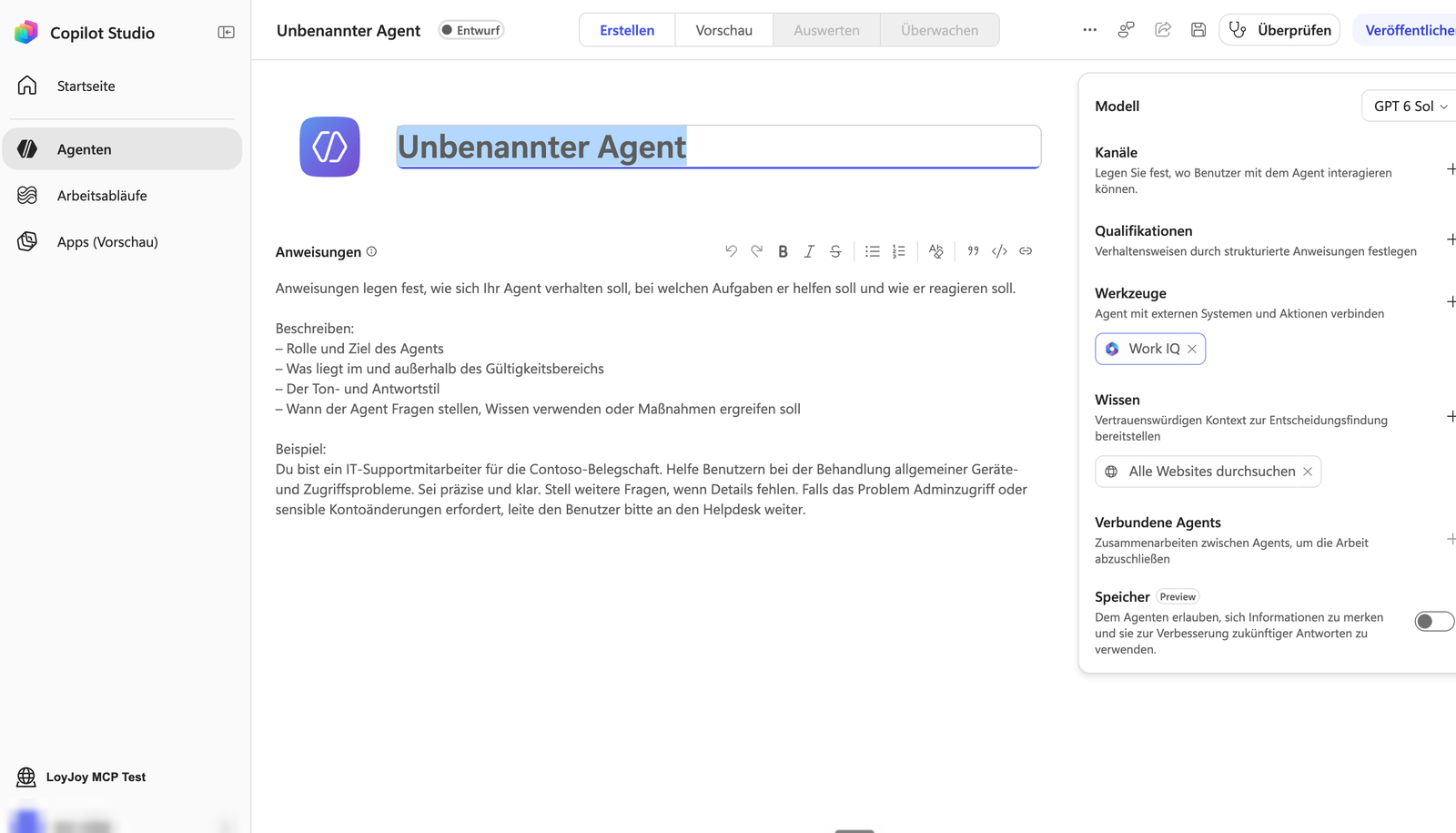
Step 2: Add the LoyJoy Manager MCP server
-
Next to Tools, click +.
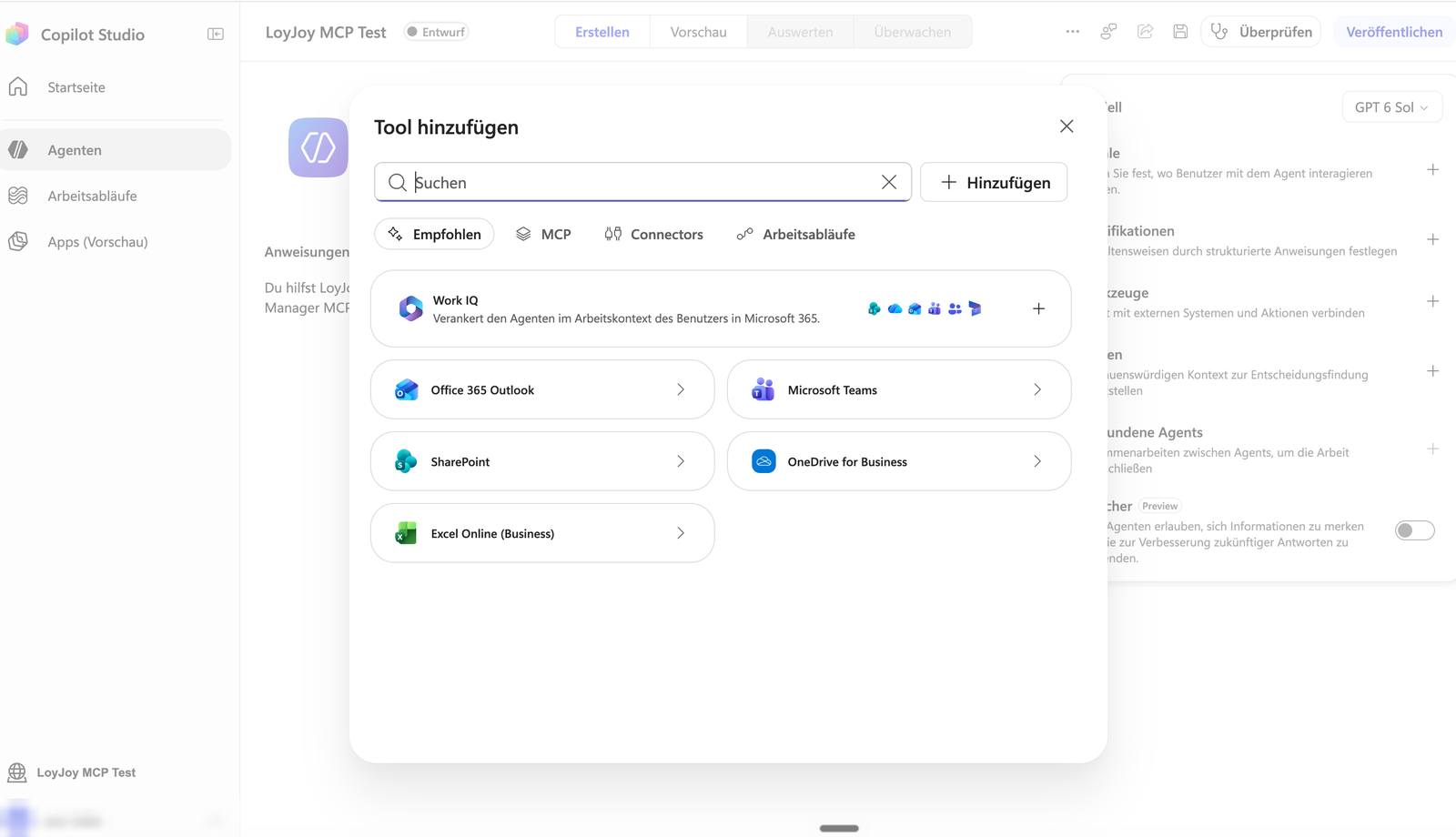
-
Click + Add at the top right and choose Model Context Protocol (MCP). The tab MCP only lists ready-made servers from Microsoft, LoyJoy is not among them.
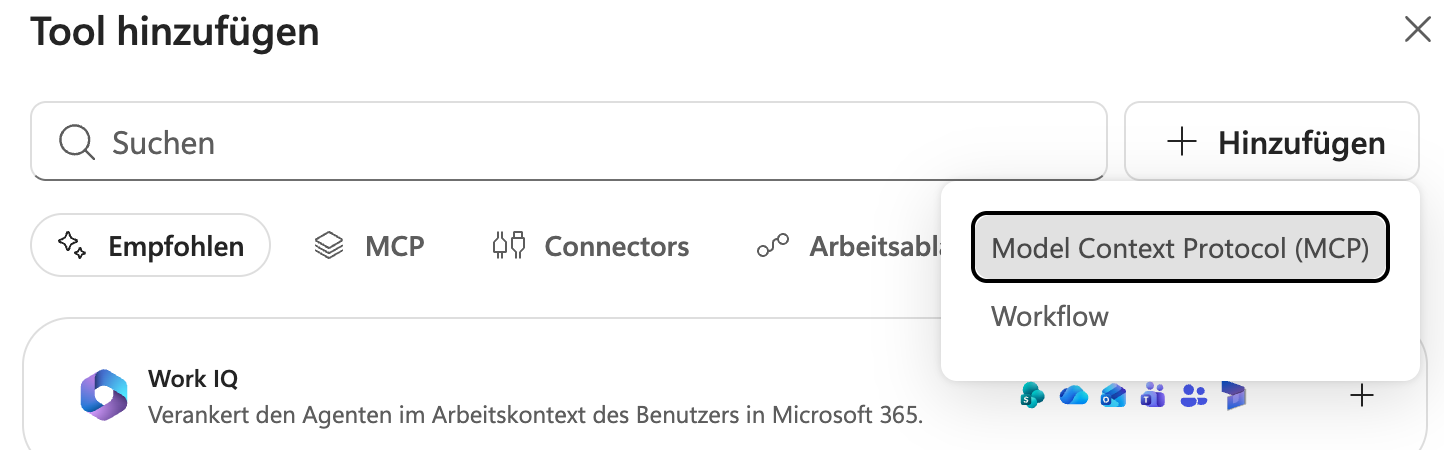
-
Fill in the form:
Field Value Server name LoyJoy ManagerServer description Manages LoyJoy AI agents, knowledge base and analytics in the LoyJoy PlatformServer URL https://app-cloud.loyjoy.com/mcpAuthentication OAuth 2.0 Configuration type Dynamic (with discovery) 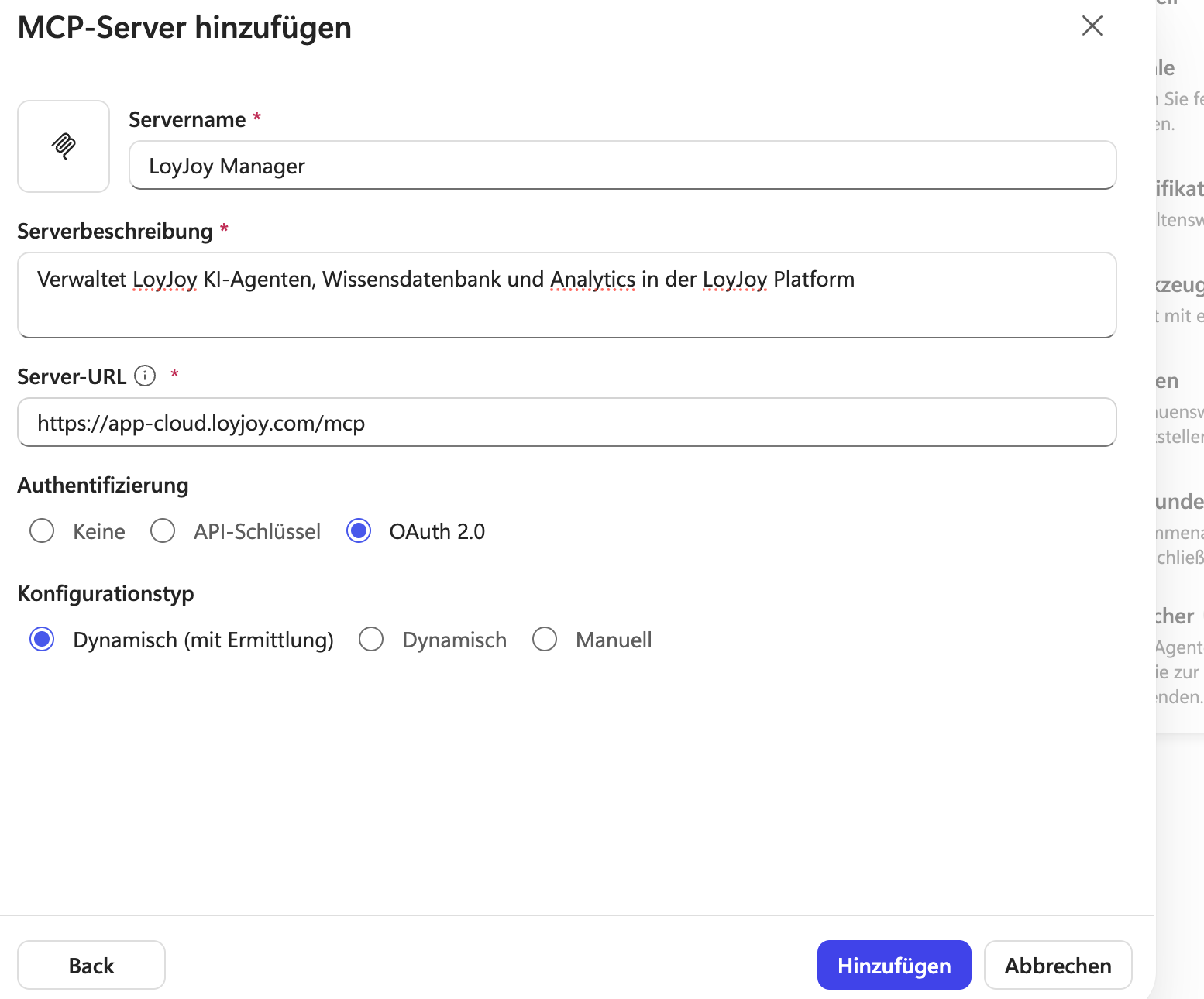
-
Click Add at the bottom of the form. Copilot Studio reads the login settings of the LoyJoy server automatically.
Step 3: Log in with LoyJoy
-
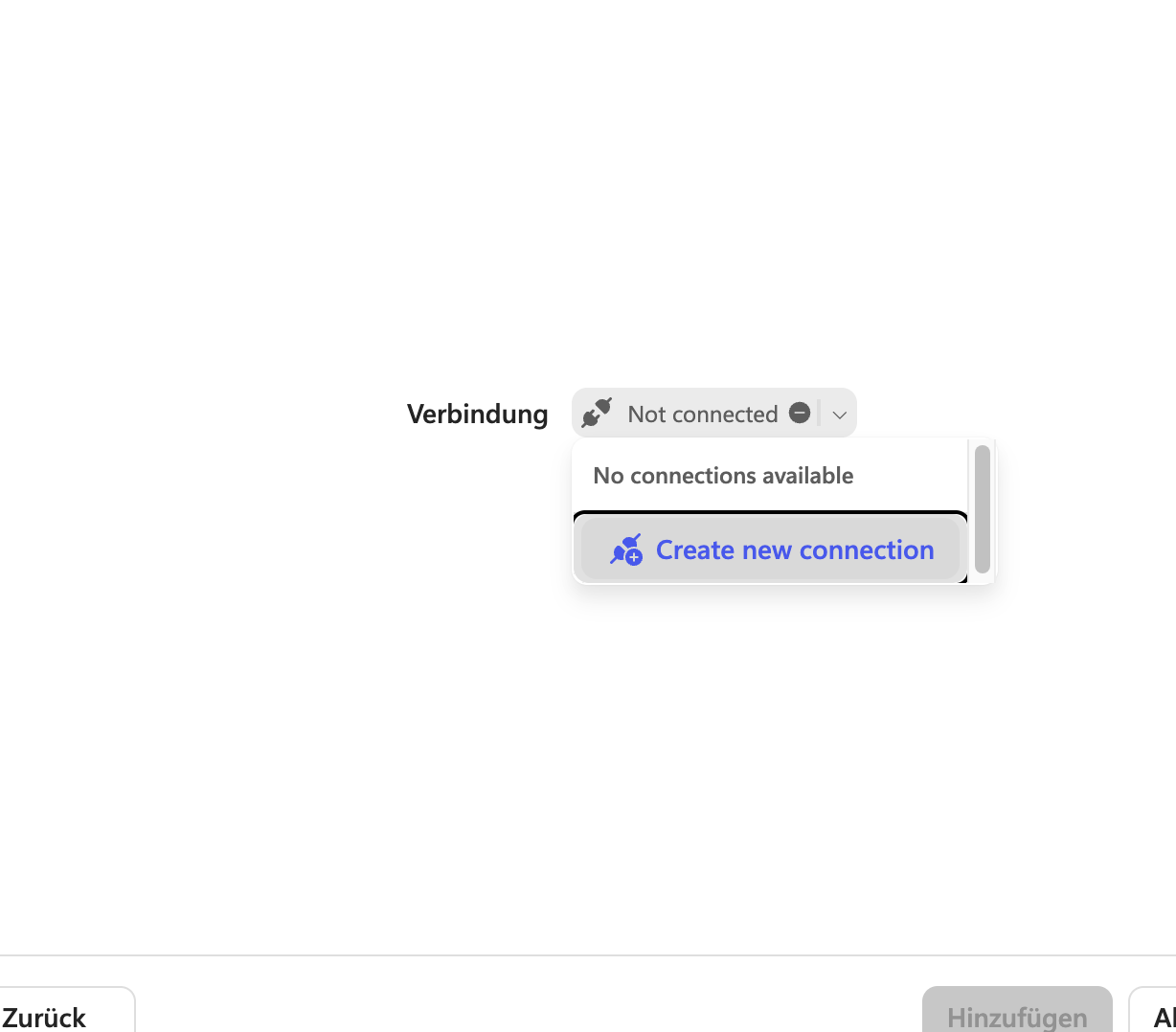
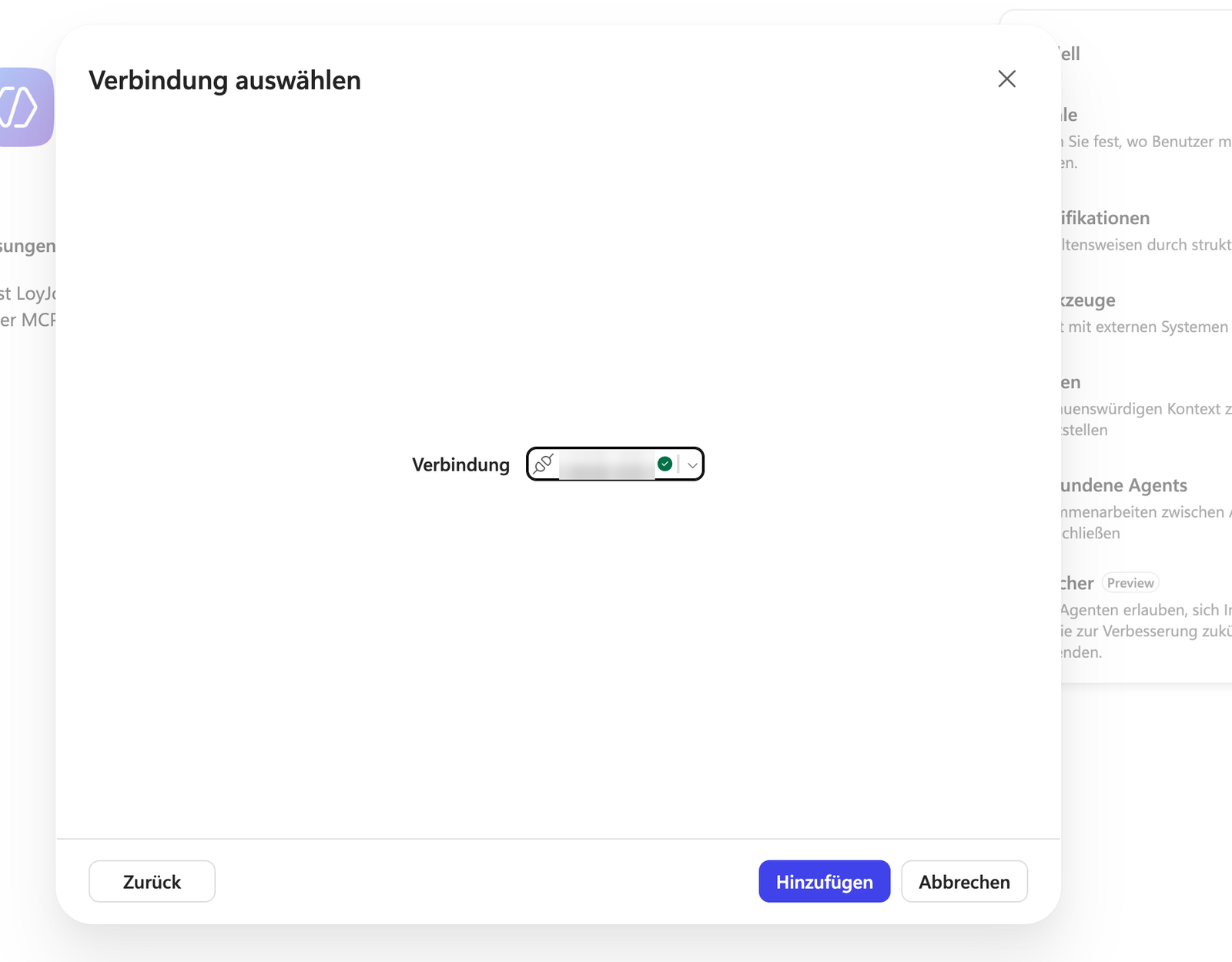
Under Connection, open the list next to Not connected and click Create new connection.
-
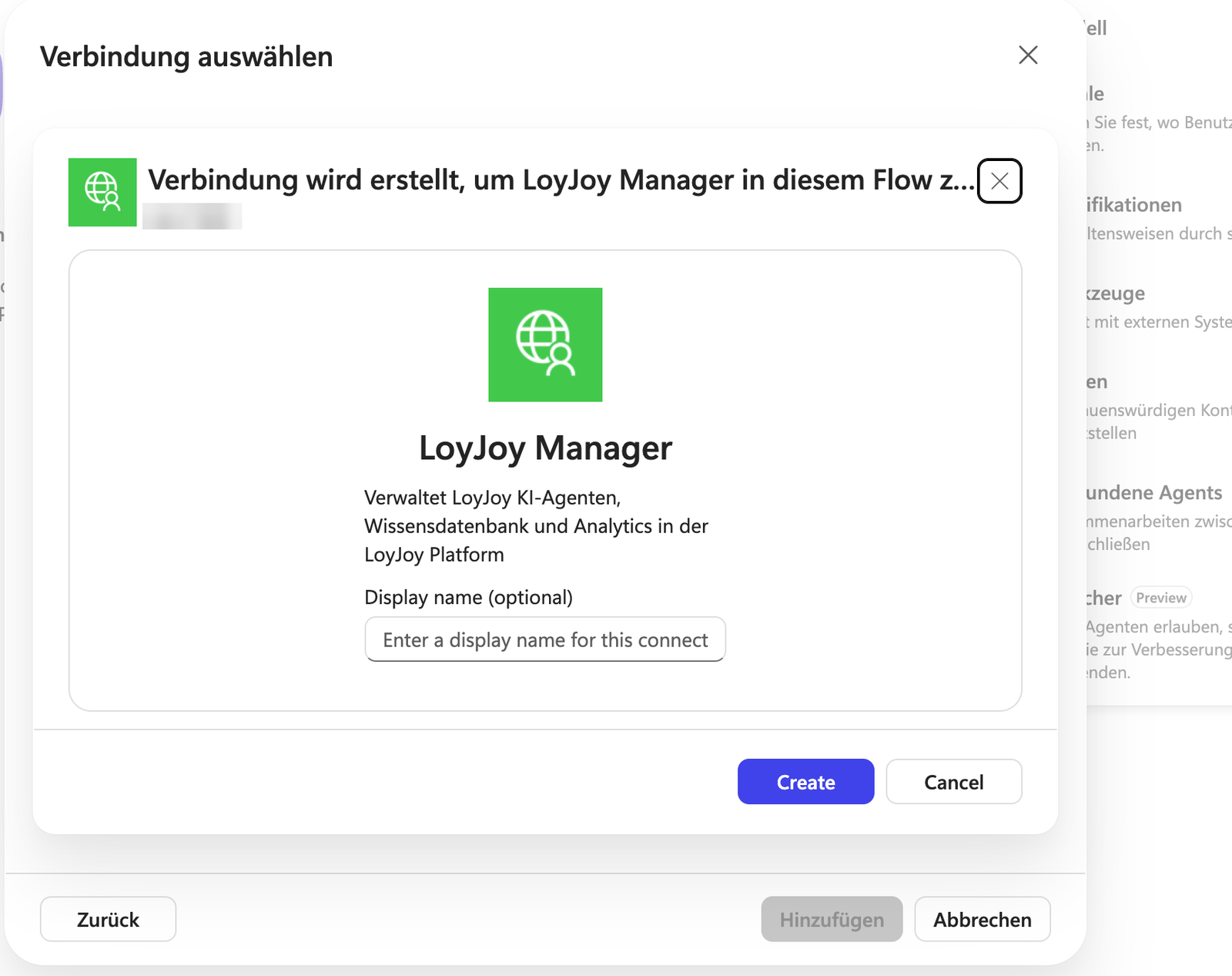
Optionally enter a display name and click Create.
-
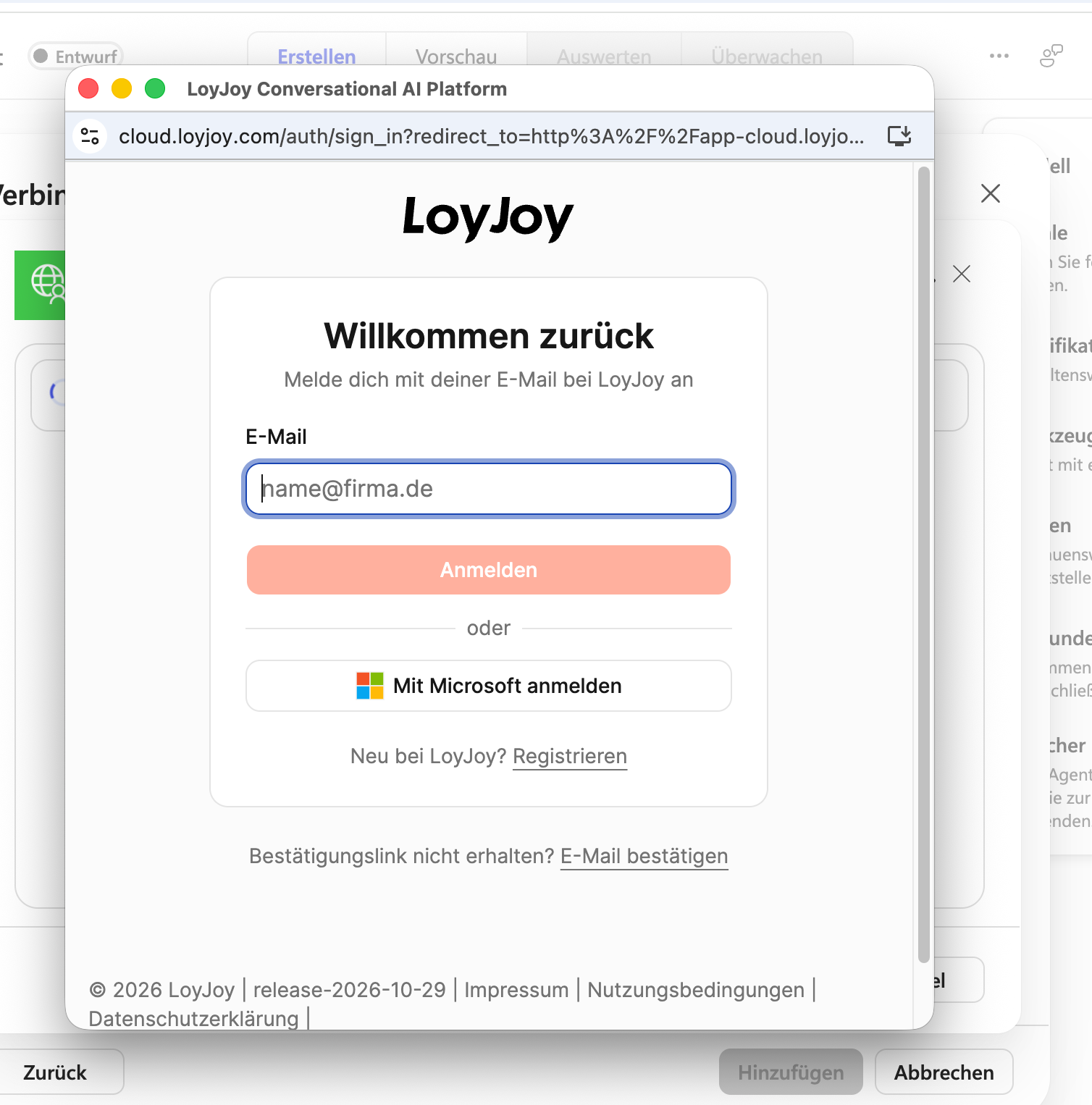
A popup opens. Log in with your LoyJoy account, with your email address or with Sign in with Microsoft. If no popup opens, allow popups for copilotstudio.microsoft.com in your browser and click Create again.
-
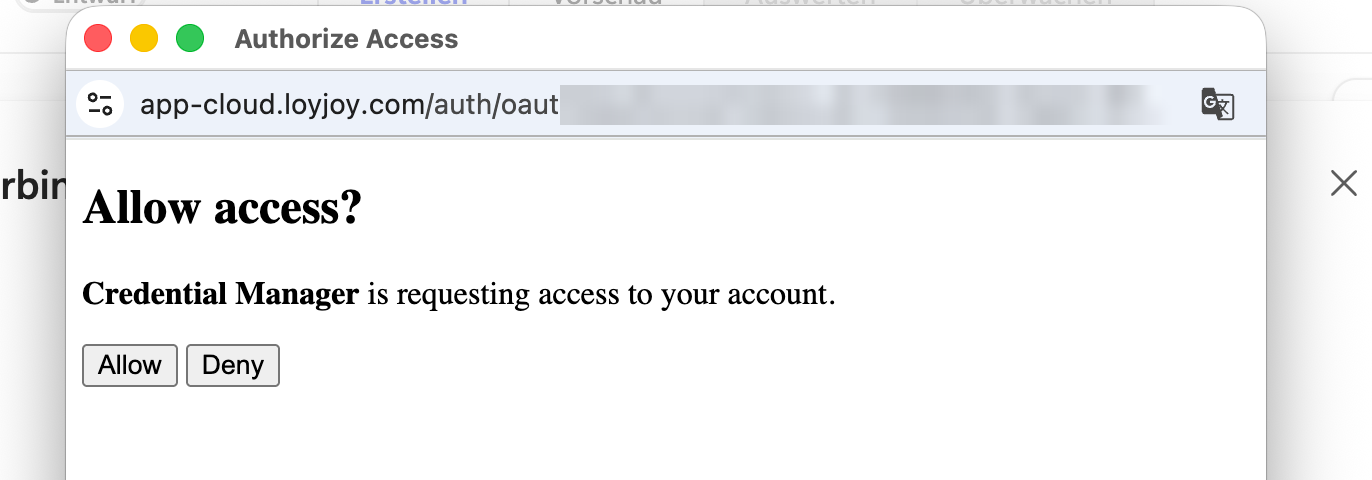
Click Allow to give Copilot Studio access to your LoyJoy account. "Credential Manager" is the name under which Copilot Studio registers with LoyJoy.
-
The connection shows a green check mark. Click Add at the bottom of the dialog.
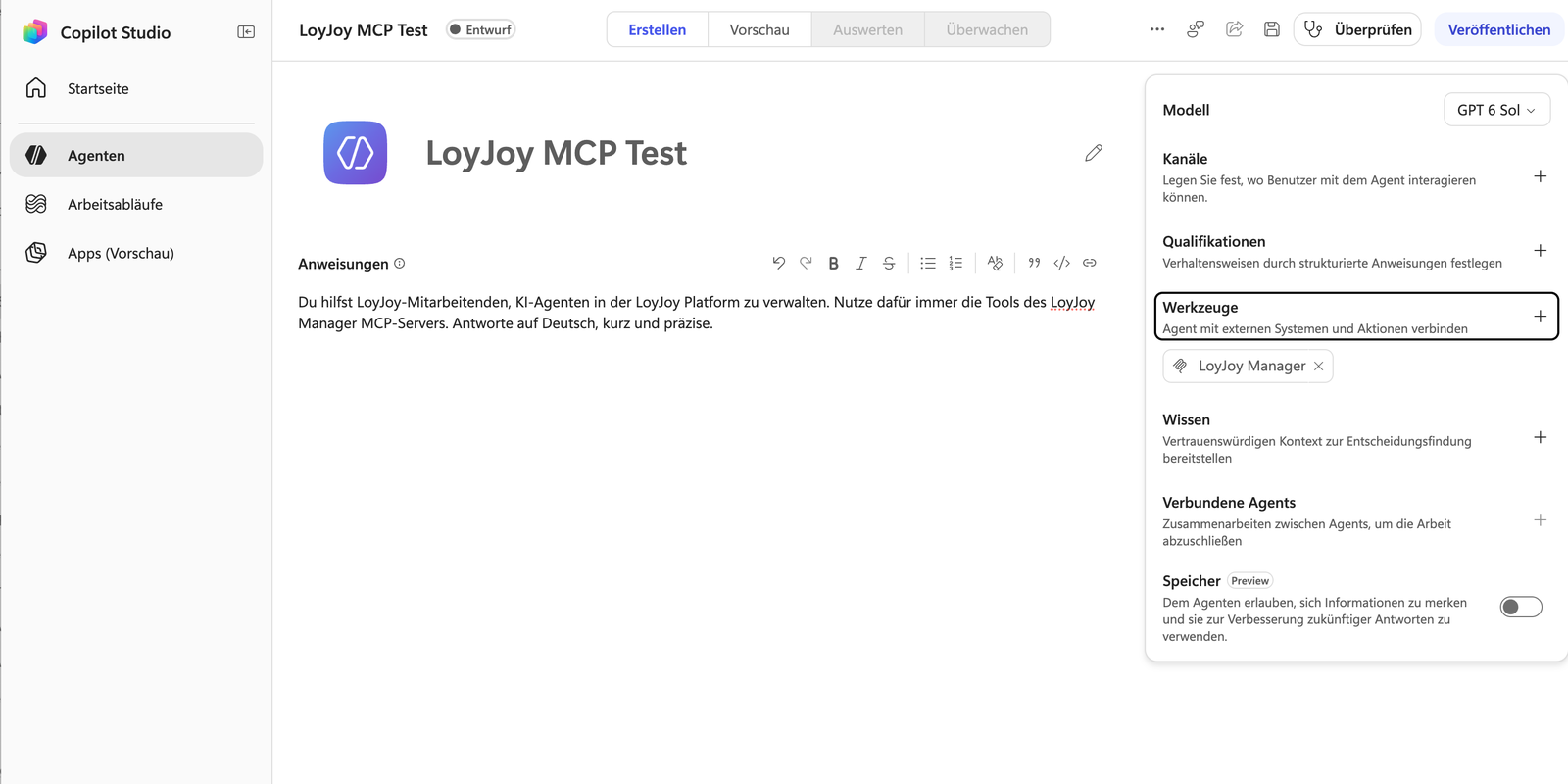
LoyJoy Manager is now listed under Tools. The connection is set up.
Step 4: Test the agent
- Click Preview at the top. The available credits of the environment are shown above the chat.
- Ask: "List my LoyJoy tenants." If Copilot Studio asks you to connect or allow, confirm.
- The agent answers with the names of the LoyJoy tenants your user has access to. Then ask, for example: "Which AI agents exist in the tenant Example GmbH?"
You are done. Publish the agent in Copilot Studio to use it in Teams or Microsoft 365 Copilot.
Example prompts
- "Which AI agents exist in the tenant Example GmbH?"
- "In LoyJoy edit the agent 'Live Chat'. Set the opening hours to 10am to 6pm."
- "Which questions could the agent 'Live Chat' not answer last month? Suggest how to close these gaps."
- "Publish the agent 'Live Chat'."
For larger changes, describe them step by step and check the result in the LoyJoy Manager before publishing. The LoyJoy plugins for Claude and ChatGPT cannot be installed in Copilot Studio.
Data protection
The agent sees your LoyJoy agent configuration and anonymized analytics. Conversations and other personal data of your end customers are not available. Your requests are processed by Microsoft according to your Microsoft contract. Security and compliance documents are in the LoyJoy Trust Center.
Troubleshooting
| Problem | Solution |
|---|---|
| You land in the Copilot chat instead of Copilot Studio | Open copilotstudio.microsoft.com directly |
| "Starting a new agent is not possible … Dataverse solution" | The environment has no Dataverse, see Part 1 |
| "The user does not have a license that allows creating an environment" | Choose the type Developer or ask your admin |
| LoyJoy is not listed in the tab MCP | Use + Add > Model Context Protocol (MCP) |
| The LoyJoy login does not open | Allow popups for copilotstudio.microsoft.com |
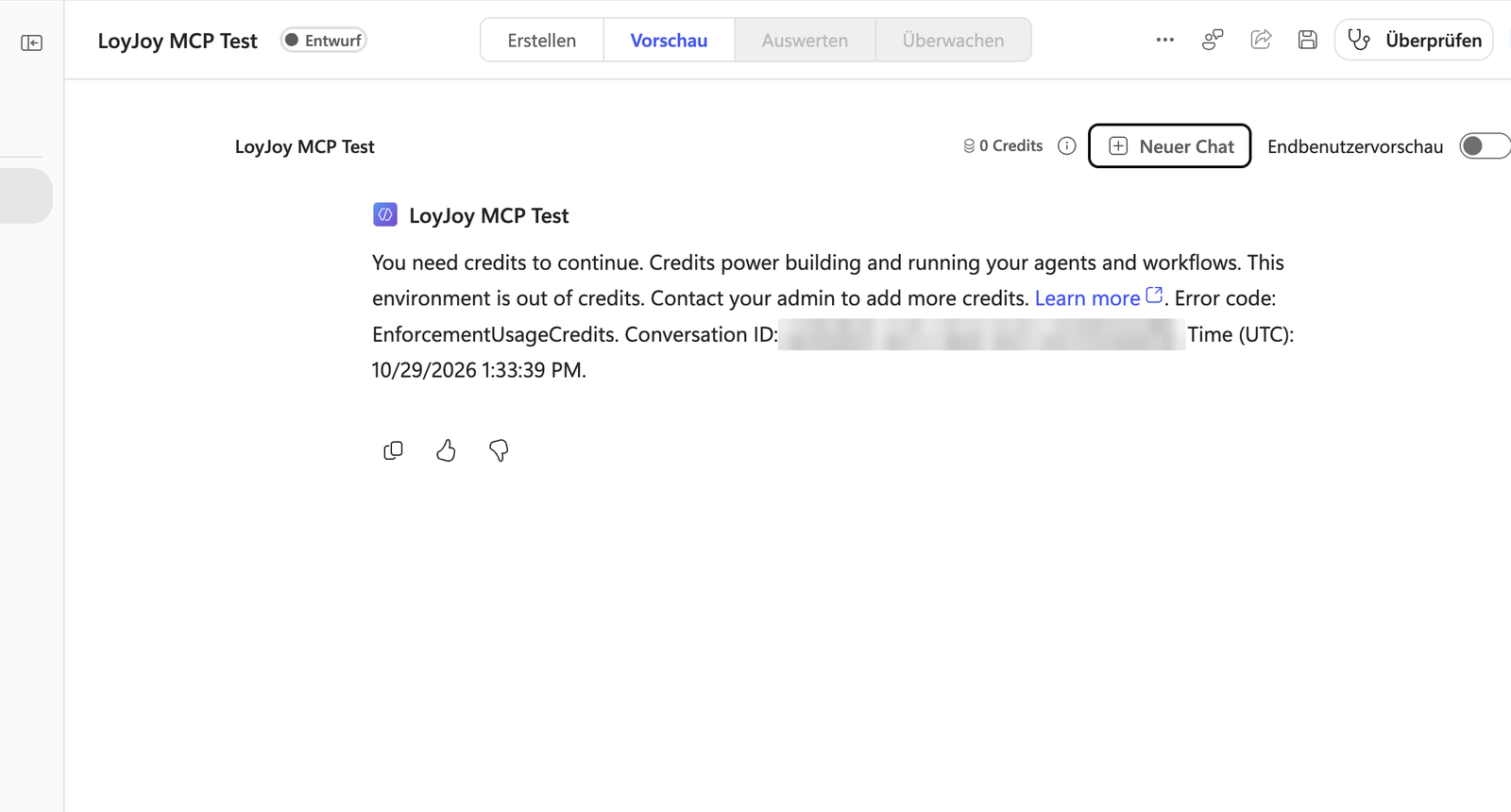
| "You need credits to continue" in Preview | The environment has no Copilot credits, see Assign Copilot credits |
| The agent can read but not change | Your LoyJoy role has no edit rights, see Invitations and Roles |