Conversations
How can I see all the questions and generated answers?
You can see the last generated messages. Go to the message tab and here you can filter by agent, type of failed reply (without feedback, fallback), user reaction to the answers (👍 👎) or resolution status. If internal IP address ranges are configured for your tenant, an additional filter lets you narrow messages down to internal or external origin, which is useful to exclude test traffic from your own office network when reviewing customer conversations.
Conversations that consist only of a restart of the AI agent, without a user message or an answer, are not listed.
Use the "Show summaries" toggle above the message list to show or hide the AI-generated summary for each message. It is enabled by default.
Every conversation gets an automatic resolution rating that shows whether the user's request was resolved. Use the Resolution filter above the list to narrow the conversations down by outcome.
Hover over an answer and a button "View prompt" will appear. Here, you get an detail view of the question and how the answer was generated. For each question, you get the use generative AI model, the used tokens, the prompt and system message and the found sources. If the agent used any tools, such as a knowledge search or an external MCP tool, each tool call and its result are shown here as well, expandable under "technical messages".

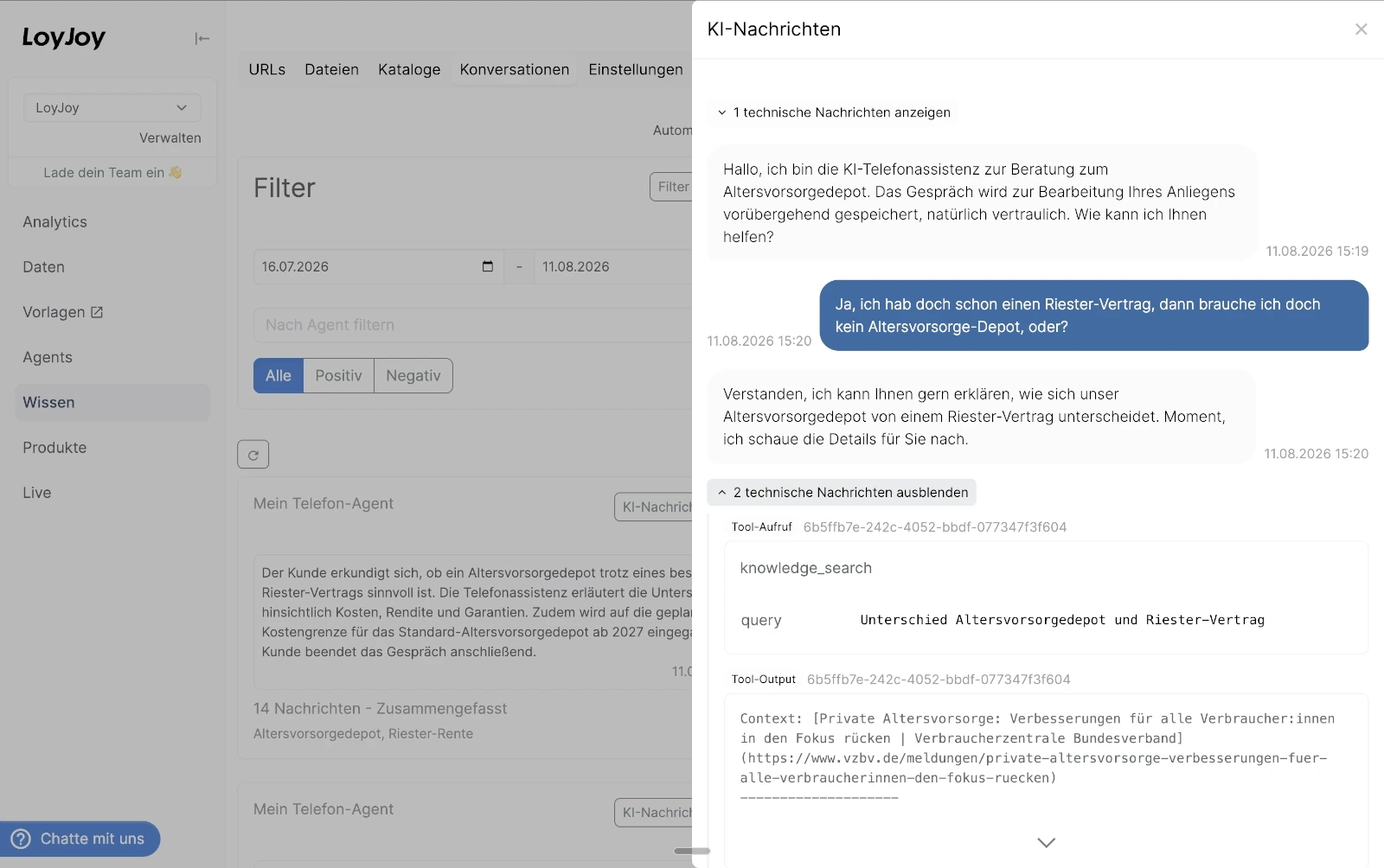
Also you can download a csv file.
Analyze and export
Next to the filter you find an Analyze & Export panel that acts on the conversations matching your current filter (date range, agent, feedback, and resolution).
- AI quality check: analyzes the quality of your AI answers and suggests improvements.
- CSV export: exports the filtered conversations as a CSV file, one row per user turn including all related AI answers and tool calls. Each row also carries the turn's resolution rating, so you can filter resolved and unresolved conversations directly in the export.
Resolution rating (Beta)
The resolution rating is a Beta feature. We are currently reworking it fundamentally and actively developing it further. Outcomes, their definitions and the way they are determined may change, so use the rating as an indicator and not yet as a reliable KPI.
For every conversation, the AI evaluates in the background whether the user's request was resolved and assigns exactly one outcome. There is nothing to configure.
The Manager uses slightly different labels for the same outcome in the Resolution filter (German interface: Lösequote) and in the badge of the conversation detail view. The table lists both, in English and German.
| Filter (EN / DE) | Badge (EN / DE) | Meaning |
|---|---|---|
| Confirmed / Gelöst | resolved / gelöst | The customer explicitly confirmed that the main request was resolved, e.g. "that helped", "works now" or "perfect, thanks". A bare "thanks" or "bye" without reference to the answer does not count as a confirmation. |
| Assumed / Angenommene | assumed / angenommen | The AI agent gave a substantive, on-topic answer that fully addresses the customer's main request, and the customer did not object or ask again afterwards. Not if the AI agent could not answer, answered off-topic or only partially, or only referred to a hotline, email address, contact form or website. |
| Workflow completed / Workflow abgeschlossen | workflow / workflow | A configured process such as a booking, order, appointment, return or form submission was completed end-to-end, and the conversation explicitly confirms it, e.g. with a confirmation, booking or reference number. Not if the process was only offered, started or interrupted. |
| Qualified lead / Qualifizierter Lead | lead / lead | A lead qualification process was completed: the customer provided the requested contact or qualification data and the conversation explicitly confirms that it was submitted. Not if the customer only expressed interest or declined to share data. |
| Handoff completed / Übergabe abgeschlossen | handoff / übergabe | A configured handoff to a human, e.g. live chat, callback or ticket, was completed and the conversation explicitly confirms that it was created or that a human took over. Not if the handoff was only offered or failed, or the customer was only referred to a hotline, email address or website. |
| Escalated / Eskaliert | escalated / eskaliert | The customer explicitly asked for a human, or the AI agent could only refer the customer to a human, hotline, email address or contact form, without a confirmed handoff. |
| Abandoned / Abgebrochen | abandoned / abgebrochen | The customer never stated a concrete request or left before the AI agent could address it, e.g. only a greeting, small talk, a test message, spam, consent, opt-out, or an unanswered clarifying question of the AI agent. |
| Unresolved / Ungelöst | unresolved / ungelöst | The customer's main request was not resolved, e.g. the AI agent could not answer or answered off-topic, incorrectly or only partially, or the customer repeated or rephrased the request, expressed dissatisfaction or gave up. |
Where you find the rating:
- Conversation detail view: a badge next to the sentiment. Hover over it to see the definition of the outcome.
- Resolution filter: narrows the conversation list down by outcome. The filter also applies to the AI quality check.
- CSV export: each row carries the turn's resolution rating, see Analyze and export.
How can I see which topics my customers are talking about?
For every conversation with an AI-generated summary, the AI also identifies 1 to 3 short topics that describe the customer's core concern (for example "Shipping Status" or "Voucher Error"). This happens automatically in the background — there is nothing to configure.
Click "Current Topics" above the message list to open an overview of these topics for the currently selected period. This feature is marked Beta and requires the Enterprise plan or higher; on lower plans the button is shown disabled with a badge indicating the required subscription.
The dialog shows:
- A donut chart with the distribution of topics.
- A list of topics sorted by how often they occurred, with the number of conversations for each topic.
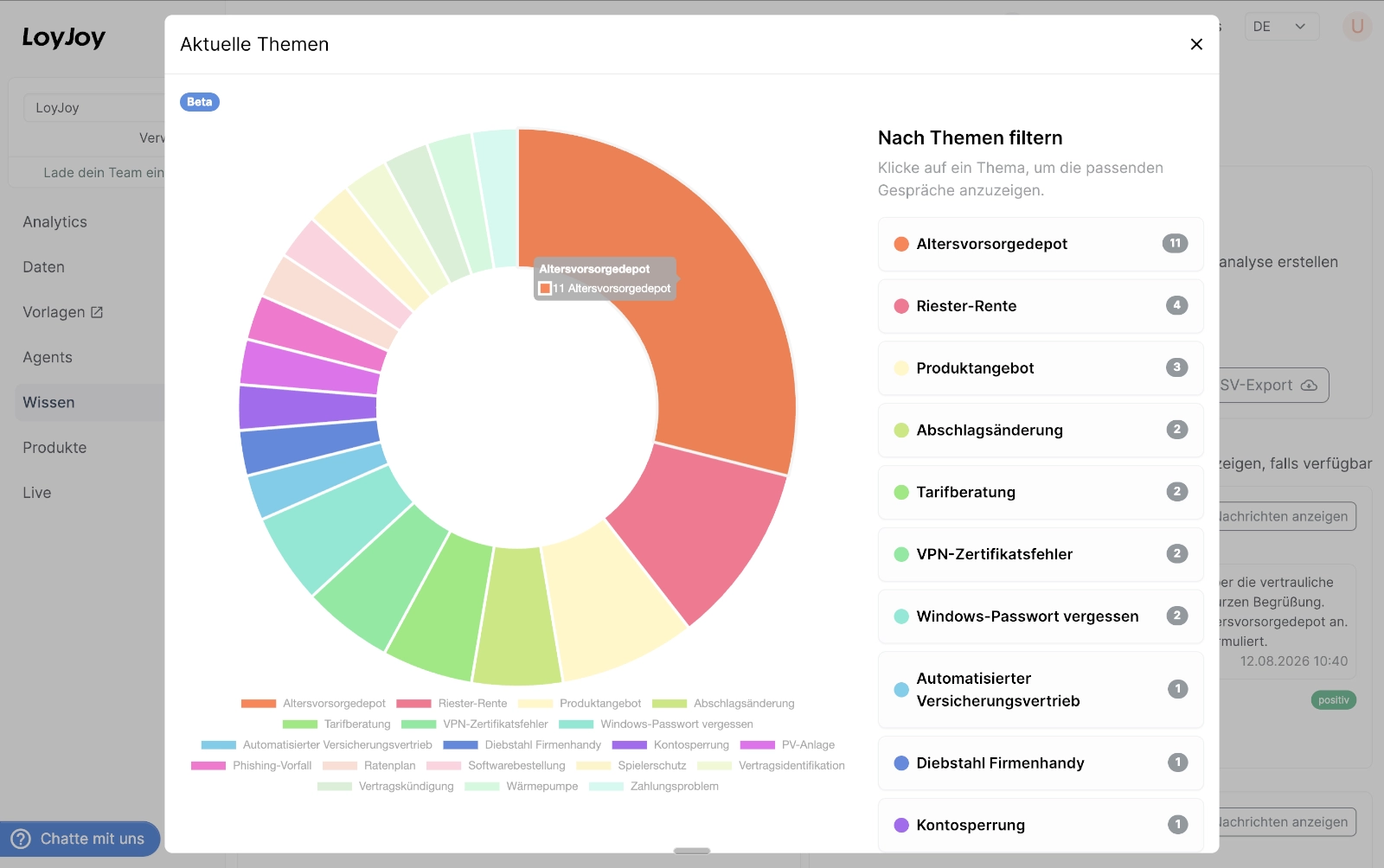
Both use the filters currently applied on the page (date range, agent, sentiment, internal/external IP address). Click a chart segment or a topic in the list to filter the conversation list down to that topic; a badge with the active topic appears above the list, which you can remove again by clicking the ✕ on it.
New topics are created as needed, but the AI reuses topic names already used for your tenant where they fit, so the list stays consistent over time instead of producing near-duplicate labels for the same subject.
Topics are only available for conversations that have an AI-generated summary. The most frequent topics across all agents are also included in the weekly performance report email.